Create, freeze, and embed one agent
The production pattern is deliberately simple:
create one agent -> test live runs -> freeze one accepted run -> integrate it
                                                        |-> private owner run
                                                        |-> customer deployment
The agent stays one logical worker throughout this lifecycle. Do not create a
separate agent for every input, customer, or MCP connection. Runtime variables
change the input. external_user_id changes which customer's supported MCP
connections are used. A new freeze changes the version.
If the worker needs several accounts of the same connector type, create exact connection aliases, organize their public IDs into an MCP resource set, and grant that set to this same agent. See Multiple MCP Accounts and Resource Sets. A new account is not a reason to clone or split the worker.
This guide covers the complete path:
- Create one agent in the web app or through the FlyMyAI MCP gateway.
- Run and refine that same agent until one execution is correct.
- Freeze the accepted execution, with or without variables.
- Understand exactly what freeze returns.
- Embed the frozen agent in your product, either with your workspace context or with isolated per-customer MCP connections.
Use this prompt: Read https://flymy.ai/skill.md and help me create, test, freeze, and ship one FlyMyAI agent in my product. If the request already says
that the agent will run inside a product or names product customer IDs, the
assistant should take the customer-deployment branch directly. It should not
ask whether to split the workflow or create one agent per customer. The guide
tells it which authoring steps use MCP and which customer-deployment steps use
REST.
Your FlyMyAI API key always belongs to the builder and stays on your backend.
FlyMyAI bills that builder account. In a customer deployment,
external_user_id is only the connection-scope identity: it selects that
customer's authorized services. It does not create a FlyMyAI user, move billing,
or expose your key to the customer.
First, separate the two meanings of MCP
MCP appears in two different parts of this flow:
| MCP use | What it does |
|---|---|
| Authoring through MCP | Claude, Codex, Cursor, or another MCP client uses create_agent, run_agent, and freeze_agent to build the agent. |
| MCP inside the frozen agent | The running agent calls Gmail, Slack, Notion, a CRM, or another attached connector. In a customer deployment, external_user_id selects the customer's isolated connection. |
You can author through the web app and still use customer MCP connections at runtime. You can also author through MCP and ship an agent with no customer connections at all. These choices are independent.
Within the frozen agent, a toolkit definition and an authenticated connection
are also different identities. An owner MCP resource set can grant several
exact accounts or custom servers to one agent. If several granted accounts can
execute the same action, the runtime schema requires the exact
_flymyai_connection public UUID instead of choosing a row by alias or order.
Step 1 - define the whole worker
Before creating anything, define five things:
- Name - what this worker is called.
- Goal - the complete job from input to final result.
- Tools - only the services the worker needs.
- Inputs - values that change between runs, if any.
- Output - the stable result shape your product will consume.
For example, one reusable inbox agent might be defined as:
Name: Customer Inbox Brief
Goal: Read messages received since {{ since }}, group them by urgency, and
return a concise brief with action items.
Input: since (required string)
Output: summary (string), action_items (array of strings)
Tool: Gmail
That is one agent. since does not require another agent, and each customer's
Gmail account does not require another agent.
Route A - create it in the web app
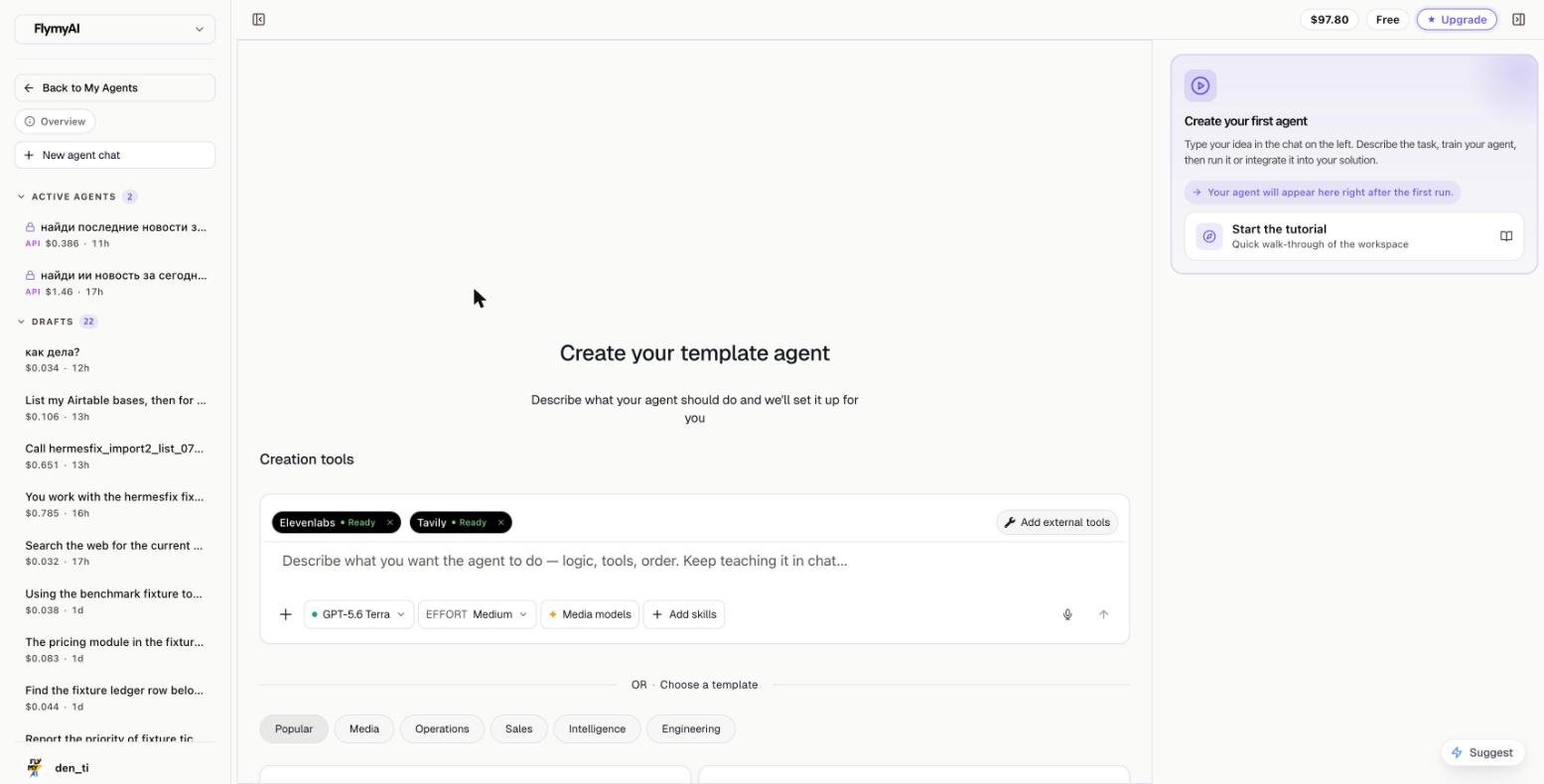
- Open app.flymy.ai/projects and select New Agent under Agents.
- Describe the complete goal in chat.
- Attach the required tools under Creation tools.
- If inputs change between runs, add them under Variables before freezing.
- Define an output schema when your product needs predictable JSON fields.
Keep refining this same agent chat. Do not start a second agent just because the first run needs a correction.
Helper agents in the app chat
For a job that needs separate helpers, ask the agent in your FlyMyAI app chat
to create or edit an agent and run it as a subagent. It uses your connected
tools and a model from the agent picker. You can name an existing agent to edit;
an agent defined by an app's flymy.yaml changes through plan and apply.
The lead has list_subagents, create_subagent, update_subagent and
delegate_agent in the owner's app chat and ordinary API, SDK or MCP runs.
A requested native helper is available to delegate immediately. Project helper
lists and edits stay within the current project; editing an agent elsewhere
does not make it a helper of this project. Explicitly allowed existing helpers
retain their own authority. Scheduled, frozen and child runs cannot author
helpers. Claude and other external assistants author through create_agent
and update_agent.
Native create/update accepts the same user_prompt_source as external
authoring. Repeating an identical delegation within one owner turn reuses its
child. An explicit operation_key identifies an intentional job; reuse it only
with the same request. Inspect completion facts and the full-result reference
with subagent_status, then read the retained result instead of repeating the
collection. get_team_run is for Agent Teams runs.
The lead can freeze_subagent and schedule_subagent when the owner requests
a recurring helper. schedule_subagent sets or changes the helper's schedule
and accepts explicit schedule_variables. External assistants can edit those
values on the same compilation with update_compilation to change future
inputs without creating another schedule. Frozen instructions still use their
pinned version until explicitly updated.
New chats default to one shared $5 budget for subagents and their tools. Adjust it through the chat's Subagents control before running; the lead's own model and tool calls are billed separately.
Route B - create it from Claude or another MCP client
Connect the FlyMyAI gateway once:
export FLYMYAI_MCP_URL=https://mcp-agents.flymy.ai/mcp
: "${FLYMYAI_MCP_URL:?Set the exact MCP endpoint}"
claude mcp add --transport http flymyai "$FLYMYAI_MCP_URL"
That value is the released production endpoint. A candidate run must receive
its exact MCP URL and must not fall back to production. If MCP tools/list or
another bounded read-only probe is unavailable, stop the MCP path and recover
the intended connection before claiming an agent was created.
Then give the assistant a normal product request. For example:
Create one reusable FlyMyAI agent called Customer Inbox Brief. It should read Gmail messages received since a required
sinceinput, group them by urgency, and return JSON withsummaryandaction_items. Attach the Gmail tool, run it once with a real input, and show me the result. Keep refining this same agent. After I approve the run, freeze it and give me the integration code.
The assistant maps that request to the same lifecycle:
| Lifecycle step | MCP tool |
|---|---|
| Find and attach tools | search_tools, add_tool |
| Create the single agent | create_agent |
| Test it | run_agent, then poll get_run |
| Refine it | update_agent or append_message |
| Freeze the accepted run | freeze_agent, then poll get_compilation |
| Test the frozen version | run_frozen, then poll get_run |
The returned agent_id is the identity of the worker. Keep it. Later runs and
versions belong to that same agent.
Send the first task in run_agent.message (REST run-loop body message,
Python client.agents.run(..., message=...)). It is stored before the run
starts and belongs to that run's operation identity.
Instructions can come from an uploaded file. Pass user_prompt_source on
create_agent or update_agent, with an exact artifact reference or
{"agent_file_id": 123}, instead of user_prompt. In the Python SDK use
client.agents.create(name="Report worker", user_prompt_source=source).
Instruction-source and first-message fields require Python SDK flymyai>=1.2.0rc17.
The agent keeps the pinned instruction source for later runs; get_agent
returns that same reference. Pass it unchanged, including its version ID,
rather than reconstructing a reference from its display metadata. Replacing
the instruction with literal user_prompt clears its previous source reference.
Large reports and instructions use the same complete-content handoff. A
helper returns a source reference, byte size and SHA-256; the lead can read
selected sections with read_payload or process the whole file in code with
flymy.iter_payload(source). The stream resumes interrupted reads and verifies
the full digest at EOF. Finish reading before publishing or executing its
contents. Model previews and context size do not cap the file transfer;
storage quotas and command lifetime still apply.
import flymy

with open("report.json.partial", "wb") as output:
    for chunk in flymy.iter_payload(result_source):
        output.write(chunk)
# The complete bytes have now passed size and SHA-256 verification.
Attached tools are available from agent code without a separate discovery turn. A failed collection is not a valid empty dataset. Keep errors distinct from a successful zero-row result and report the actual outcome.
Before a connector write, discover the exact action with search_tools and
inspect its request schema with the read-only get_tool_schemas path. Never
call a create, update, send, append, batch-write, or delete action with empty or
guessed arguments to learn its schema. For direct catalog calls, reserve one
stable operation_key before dispatch and reuse it only for the identical
logical request. Run OAuth and Composio actions inside the agent unless the
gateway explicitly documents a safe direct-call contract. If schema discovery
returns not_found, stop the direct-call path or use the agent runtime - do not
probe the write.
Paid inference follows the same identity standard: pass operation_key to
flymy.tool for Gemini analysis even though analysis does not edit the media.
The provider's request_id identifies its request; it does not replace the
platform key or make an unknown outcome safe to repeat.
MCP run_agent and run_frozen require a nonblank printable ASCII
operation_key of 1-255 characters with no leading or trailing spaces. REST
live-agent, frozen-compilation, and deployment runs require a
nonblank Idempotency-Key header with the same maximum. No surface generates a
fallback. Reserve the key with the canonical request before dispatch and reuse
it only for an identical replay. Other writes such as create_agent,
instruction freeze, and deployment creation still require a unique audit label
and lost-response reconciliation rather than blind retry.
Step 2 - prove one live run
Run the agent with a realistic input and wait until it settles. Review both the result and the tool calls.
For the example above:
run_agent({
  "agent_id": "<agent UUID>",
  "variables": {"since": "2026-08-01"},
  "operation_key": "daily-brief-source-<uuid>"
})
If the result is wrong, update the same agent and run it again. Freeze only a completed execution whose behavior you accept. The execution ID identifies the specific successful run that will be distilled.
Step 3 - freeze with or without variables
Freeze takes the accepted execution ID. You do not pass runtime variable values to the freeze call itself.
The difference between the two modes is defined on the agent before the successful run:
| Mode | Agent definition before freeze | Future run call |
|---|---|---|
| Without variables | Fixed goal, no input_schema, no {{ placeholders }} | Omit variables or send an empty body |
| With variables | input_schema plus matching {{ placeholders }} in the goal | Send values that validate against that schema |
Without variables
Use this when every run performs the same fixed job:
compilation = client.agents.compile_from_run(accepted_run.id, timeout=120)

result = client.compilations.run_instruction_and_wait(
    compilation.id,
    idempotency_key="fixed-worker-frozen-test-<uuid>",
)
print(result.output)
With variables
Define the schema on the same agent before the run you freeze:
agent = client.agents.create(
    name="Customer Inbox Brief",
    goal=(
        "Read messages received since {{ since }}, group them by urgency, "
        "and return a concise brief with action items."
    ),
    tools=[gmail_tool_id],
    input_schema={
        "type": "object",
        "properties": {
            "since": {
                "type": "string",
                "description": "Beginning of the reporting period",
            }
        },
        "required": ["since"],
        "additionalProperties": False,
    },
    output_schema={
        "type": "object",
        "properties": {
            "summary": {"type": "string"},
            "action_items": {
                "type": "array",
                "items": {"type": "string"},
            },
        },
        "required": ["summary", "action_items"],
        "additionalProperties": False,
    },
)

run = client.runs.create(
    agent_id=agent.id,
    variables={"since": "2026-08-01"},
    idempotency_key="customer-inbox-source-<uuid>",
)
accepted_run = client.runs.wait(run.id, timeout=600)
if accepted_run.status != "completed":
    raise RuntimeError(accepted_run.error or accepted_run.status)

compilation = client.agents.compile_from_run(accepted_run.id, timeout=600)

result = client.compilations.run_instruction_and_wait(
    compilation.id,
    variables={"since": "2026-08-15"},
    idempotency_key="customer-inbox-frozen-<uuid>",
    timeout=600,
)
print(result.output)
The schema is the runtime contract. Missing required fields, extra forbidden fields, and wrong types fail validation before the frozen execution starts.
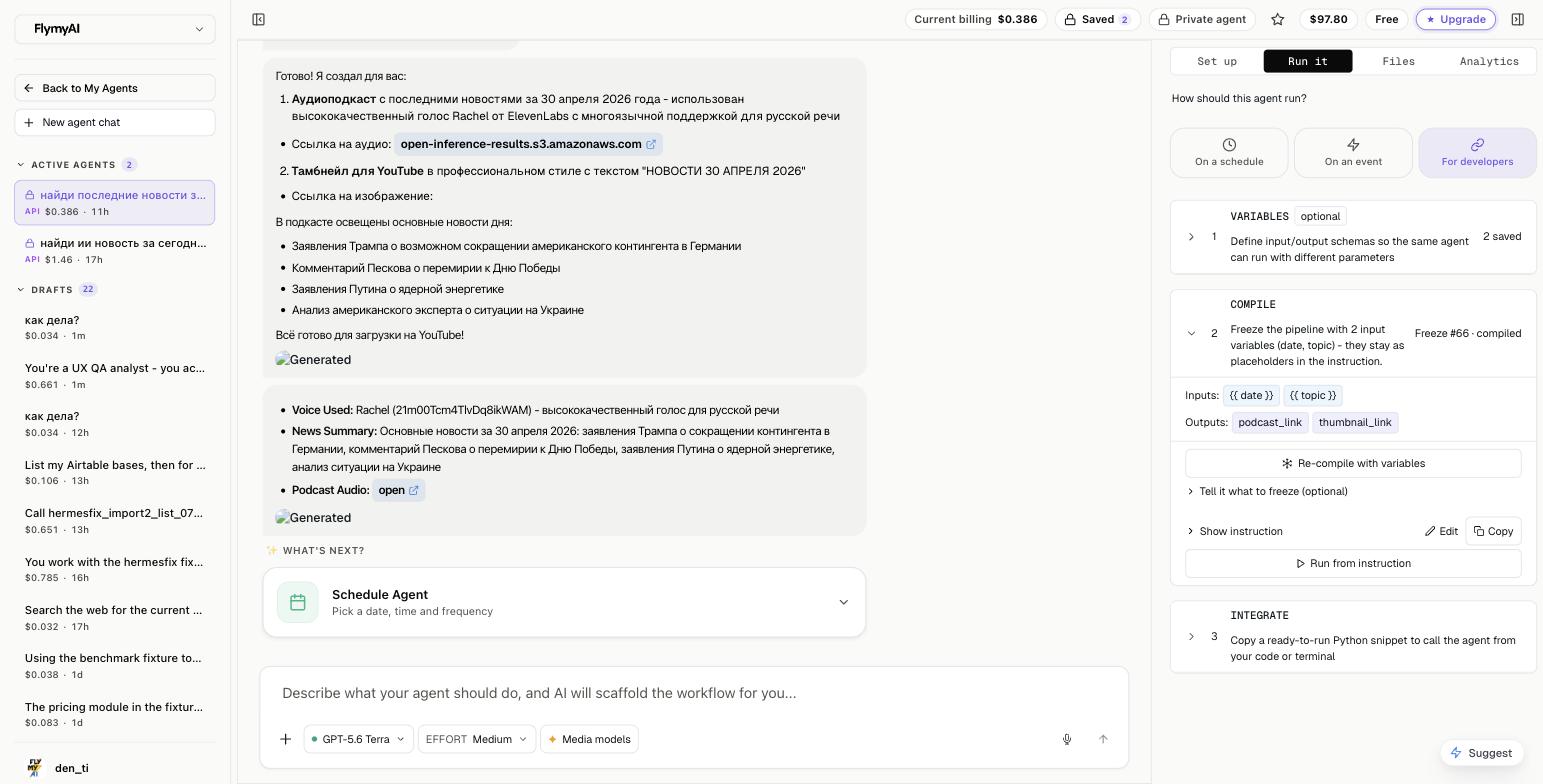
In the web app, the equivalent flow is Run it -> For developers -> Variables -> Compile.
Step 4 - know what freeze returns
The recommended instruction-freeze flow returns a compilation resource:
| Field | Meaning |
|---|---|
id | Integer compilation ID used by run-instruction and run_frozen |
status | Before the first frozen run: pending or compiling until compiled, or failed. After a frozen run starts, this projected field can be running, completed, or failed. |
instruction_md | The reviewed Markdown instruction distilled from the accepted run |
error | Freeze error when compilation fails |
The freeze call can return before compilation finishes. Poll
get_compilation or use compile_from_run, which waits for the initial
compiled or failed state. If you test the frozen artifact afterward,
completed means its latest frozen execution completed - it is not a reason to
freeze again. Treat both compiled and completed as publish-ready, failed
as terminal, and running as a state to keep polling with a bound.
A compilation is an owner-editable authoring artifact: the API can PATCH its
instruction_md. Do not mutate it after approval if you need a reproducible
release. The immutable deployment artifact is the AgentVersion materialized
from that compilation; a deployment pins that version.
Freeze decides what becomes code. Repeatable steps - loops, data shaping, tool
calls with clear rules - are saved as Python code blocks that the instruction
runs with run_code_block, each pinned to an exact version; steps that need
judgment stay agent steps. The instruction ends with a Frozen code list of
each block's version and SHA-256. Editing a block later saves a new version,
and a frozen version keeps running the code it was frozen with. You do not pick
this mode: a plain freeze does it.
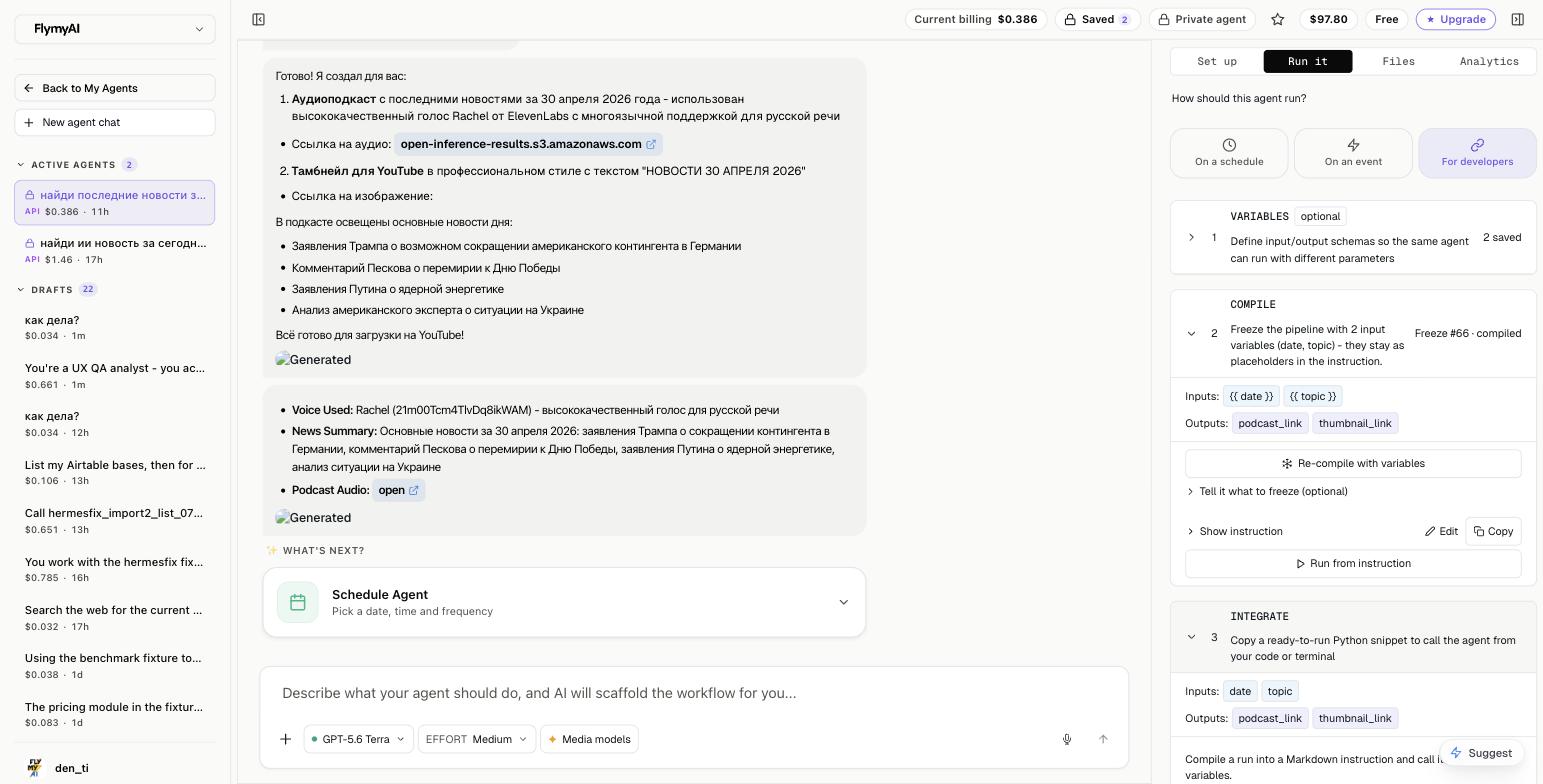
The UI's Integrate step gives you a ready snippet that calls the frozen compilation ID:
The older compile endpoint that generated script_code is retired. Use
instruction freeze plus run-instruction so schemas, tools, code blocks and
the reviewed instruction stay on the managed runtime.
Keep these identifiers in your application configuration:
AGENT_ID       - the one editable worker
COMPILATION_ID - the reviewed, owner-editable freeze artifact
VERSION_ID     - one immutable deployment release
DEPLOYMENT_ID  - optional stable customer-facing release channel
Set one exact Agents API environment before using the HTTP examples. Released production uses the value below. A release candidate must supply its own root and must never fall back to production:
export FLYMYAI_AGENTS_API_ROOT=https://backend.flymy.ai/api/v1/agents
Step 5A - integrate without per-customer MCP
Use this path when the frozen agent has no external connector, uses a connectionless tool, or should run with the builder's own workspace context. Your backend calls the frozen compilation directly. Both the SDK and raw HTTP forms require a caller-owned idempotency key; neither generates one.
import os
from flymyai import AgentClient

client = AgentClient(api_key=os.environ["FLYMYAI_API_KEY"])

result = client.compilations.run_instruction_and_wait(
    int(os.environ["FLYMYAI_COMPILATION_ID"]),
    variables={"since": "2026-08-15"},  # omit for an agent without variables
    idempotency_key=os.environ["PERSISTED_RUN_KEY"],
    timeout=600,
)

if result.status != "completed":
    raise RuntimeError(result.error or result.status)

print(result.output)
The plain HTTP start call is:
: "${FLYMYAI_AGENTS_API_ROOT:?Set the exact Agents API root}"
case "$FLYMYAI_AGENTS_API_ROOT" in */api/v1/agents) ;; *) exit 1 ;; esac
BASE="${FLYMYAI_AGENTS_API_ROOT%/}"

curl -X POST \
  "$BASE/compilations/$COMPILATION_ID/run-instruction/" \
  -H "X-API-KEY: $FLYMYAI_API_KEY" \
  -H "Idempotency-Key: $PERSISTED_RUN_KEY" \
  -H "Content-Type: application/json" \
  -d '{"variables":{"since":"2026-08-15"}}'
Reserve and persist PERSISTED_RUN_KEY with the canonical compilation ID and
request body before dispatch. Reuse it only for the identical replay. A changed
body with the same key returns a conflict. After a timeout or lost response,
reconcile the stored operation instead of starting the run with a new key.
If the agent has an input_schema, always include a variables object. It may
be empty only when the schema has no required fields. For an agent without an
input schema, omit the body.
The start call returns an execution ID immediately. Poll
GET /api/v1/agents/executions/{execution_id}/status/ and read result when
is_settled is true. Keep the API key on your backend, never in browser code.
Step 5B - integrate with per-customer MCP
Use this path when the same frozen agent runs for many customers and each customer authorizes their own Gmail, Slack, Notion, CRM, or another supported hosted connector.
The topology remains one agent:
one agent -> one frozen version -> one stable deployment
                                      |-> external_user_id customer_1
                                      |-> external_user_id customer_2
                                      |-> external_user_id customer_3
Publish, preflight, and hosted connection setup are currently REST. Customer
execution can use the REST run shown below or a separately provisioned
customer-bound MCP process after publish. The bound process exposes only
run_bound_deployment and get_bound_deployment_run; it takes variables and
an operation key, while trusted server configuration binds deployment,
external_user_id, and mapping. See
Per-customer MCP Access.
Do not generate client.deployments examples unless the installed SDK version
actually exposes that namespace.
The owner agent may already use an owner MCP resource set while it is being
authored. Customer deployment mappings are separate and belong to each exact
ExternalPrincipal; an owner set is never reused as a customer set.
When authoring used MCP OAuth, call MCP whoami and compare its user_id with
GET $FLYMYAI_AGENTS_API_ROOT/me/ authenticated by the REST key.
They must match before publication. A key owned by another builder cannot and
must not publish the MCP-authored agent.
1. Materialize and publish the frozen version
After freeze reaches compiled, reuse that same COMPILATION_ID - do not
freeze the accepted execution again. Without editing the agent in between,
wait for the immutable version materialized from that exact compilation. Reject
zero results after the bounded wait or more than one exact match. Then create
one draft deployment, inspect its access requirements, run preflight, and
publish it:
import os
import time
import requests
from urllib.parse import urljoin, urlparse

BASE = os.environ["FLYMYAI_AGENTS_API_ROOT"].rstrip("/")
if not BASE.endswith("/api/v1/agents"):
    raise RuntimeError("FLYMYAI_AGENTS_API_ROOT must end in /api/v1/agents")
HEADERS = {"X-API-KEY": os.environ["FLYMYAI_API_KEY"]}
AGENT_ID = os.environ["FLYMYAI_AGENT_ID"]
COMPILATION_ID = int(os.environ["FLYMYAI_COMPILATION_ID"])
OPERATION_LABEL = os.environ["FLYMYAI_OPERATION_LABEL"]  # persist before writes

version_id = None
for _ in range(1350):
    versions = []
    page_url = f"{BASE}/versions/"
    page_params = {"agent_task": AGENT_ID}
    for _page in range(100):
        version_response = requests.get(
            page_url,
            headers=HEADERS,
            params=page_params,
            timeout=30,
        )
        version_response.raise_for_status()
        payload = version_response.json()
        if isinstance(payload, list):
            versions.extend(payload)
            break
        versions.extend(payload["results"])
        next_url = payload.get("next")
        if not next_url:
            break
        candidate_url = urljoin(f"{BASE}/", next_url)
        if urlparse(candidate_url)[:2] != urlparse(BASE)[:2]:
            raise RuntimeError("Version pagination changed origin")
        page_url = candidate_url
        page_params = None
    else:
        raise RuntimeError("Version pagination exceeded 100 pages")

    matches = [version for version in versions
               if version["source_compilation"] == COMPILATION_ID]
    if len(matches) > 1:
        raise RuntimeError("Multiple versions match the accepted compilation")
    if matches:
        version_id = matches[0]["public_id"]
        break
    time.sleep(2)
if version_id is None:
    raise TimeoutError("Accepted frozen version was not materialized")

deployment_response = requests.post(
    f"{BASE}/deployments/",
    headers=HEADERS,
    json={
        "agent_task": AGENT_ID,
        "candidate_version": version_id,
        "name": f"Production [{OPERATION_LABEL}]",
        "status": "draft",
        "publish_mode": "embedded",
    },
    timeout=30,
)
deployment_response.raise_for_status()
deployment_id = deployment_response.json()["public_id"]

access_response = requests.get(
    f"{BASE}/deployments/{deployment_id}/access/",
    headers=HEADERS,
    timeout=30,
)
access_response.raise_for_status()
access = access_response.json()

unsupported = [
    requirement["slot"]
    for requirement in access["requirements"]
    if requirement["connection_required"]
    and not requirement["hosted_setup_supported"]
]
if unsupported:
    raise RuntimeError(f"Embedded setup is not supported for slots: {unsupported}")

preflight_response = requests.post(
    f"{BASE}/deployments/{deployment_id}/preflight/",
    headers=HEADERS,
    json={"publish_mode": "embedded"},
    timeout=30,
)
preflight_response.raise_for_status()
if not preflight_response.json()["ready"]:
    raise RuntimeError("Deployment preflight is not ready")

publish_response = requests.post(
    f"{BASE}/deployments/{deployment_id}/publish/",
    headers=HEADERS,
    json={"publish_mode": "embedded"},
    timeout=30,
)
publish_response.raise_for_status()
The 45-minute bound covers the backend's full scheduled materialization recovery step. Normal versions appear much sooner. Keep this wait read-only; a slow version is not permission to POST a duplicate freeze or version.
Save deployment_id. It stays stable when you later publish a newer frozen
version of the same agent.
2. Connect each customer's required accounts
Derive external_user_id from your authenticated product session. Use a stable,
opaque, non-secret ID from your system, at most 255 characters, that does not
start with the reserved flymyai-owner- prefix. Do not accept an arbitrary ID
from the browser, and do not use an email address as the tenant key.
For every connection_required slot returned by access, create a short-lived
connection session from your backend:
connect-session has no caller idempotency key. Persist the canonical
deployment, customer, slot, and audit label before one dispatch. If the response
is lost, do not immediately create another session. Reconcile through access
and the known 15-minute window, and record an unknown outcome if uniqueness
cannot be proven.
customer_id = "customer_42"
slot = "gmail"

session_response = requests.post(
    f"{BASE}/deployments/{deployment_id}/connect-session/",
    headers=HEADERS,
    json={"external_user_id": customer_id, "slot": slot},
    timeout=30,
)
session_response.raise_for_status()
redirect_url = session_response.json()["redirect_url"]
Send only redirect_url to that authenticated customer. It expires after 15
minutes and is single-use. After they authorize the third-party service, query
access with the same external_user_id until the required connection is
active and unexpired.
3. Run the same deployment for that customer
run_key = os.environ["PERSISTED_DEPLOYMENT_RUN_KEY"]
# Load a key reserved with the canonical request in durable storage before this process.
run_response = requests.post(
    f"{BASE}/deployments/{deployment_id}/run/",
    headers={
        **HEADERS,
        "Idempotency-Key": run_key,
    },
    json={
        "external_user_id": customer_id,
        "variables": {"since": "2026-08-15"},
    },
    timeout=30,
)
run_response.raise_for_status()
execution_id = run_response.json()["id"]
Reuse run_key only for the identical request through the documented replay
contract. Never automatically repeat a deployment write after a timeout, lost
response, or other ambiguous dispatch. Persist the unknown outcome and
reconcile it before any new dispatch.
Passing external_user_id switches supported hosted connector resolution to
that customer's principal. It does not choose a mapping or account by itself.
The builder's API key and billing identity do not switch. Your product can
meter the returned execution and apply its own quotas, credits, markup, or
billing.
Choose one mapping mode for each run:
| Mapping mode | Run fields |
|---|---|
| FlyMyAI-managed saved bindings | Omit both resource_set_id and connections |
| Customer-managed named mapping | Send resource_set_id and its saved resource_set_revision |
| One-off explicit mapping | Send connections keyed by frozen slot |
resource_set_id and connections are mutually exclusive. A named mapping is
an external-principal resource set containing exact integration_connection
public UUIDs. Store its opaque public ID and revision in your backend, not in
browser state. The complete creation and concurrency flow is in
Multiple MCP Accounts and Resource Sets.
The backend still accepts an omitted revision for compatibility, but the public
safe workflow always sends both saved values so stale state fails closed.
For example, the named-mapping body for the same deployment endpoint is:
run_body = {
    "external_user_id": customer_id,
    "variables": {"since": "2026-08-15"},
    "resource_set_id": os.environ["CUSTOMER_MCP_RESOURCE_SET_ID"],
    "resource_set_revision": int(
        os.environ["CUSTOMER_MCP_RESOURCE_SET_REVISION"]
    ),
}
For a one-off mapping, each connections value is either one exact
integration-connection public UUID or an array of UUIDs for a pooled slot:
run_body = {
    "external_user_id": customer_id,
    "variables": {"since": "2026-08-15"},
    "connections": {
        "support_mailbox": support_connection_id,
        "archive_mailbox": [archive_connection_id],
    },
}
Use only frozen slot names, satisfy cardinality, and include every required slot when this is meant to be a complete explicit mapping. Omitting a slot is not the same as clearing it: current runtime behavior continues to the saved binding for that slot. Every supplied ID must belong to this external principal. Owner connection IDs, foreign-customer IDs, unknown slots, and credentials in place of IDs are invalid.
Embedded customer runs currently accept variables and supported connection
selection, but not per-run agent_file_external_ids. A file-input workflow
must keep files in a supported frozen/runtime source or wait for embedded
customer file attachments; sending that field returns HTTP 400.
Missing or invalid customer connections currently return an HTTP 400 error under
connections. Create connection links through connect-session; do not treat
every non-success response as a missing connection because authentication,
validation, rate-limit, and server errors need different handling.
external_user_id does not make every arbitrary or owner-only custom MCP
customer-compatible. The embedded preflight is authoritative. If it rejects an
attached toolkit, do not silently split the logical job into multiple agents.
Keep the worker whole, report the unsupported requirement, and either use a
supported hosted adapter or wait until that toolkit has an embedded authority
contract.
For connection state, re-authorization, multiple accounts per slot, and the complete polling loop, continue with Per-customer MCP access. For lower-level REST details, see Call Your Agent from Your Product.
Step 6 - release a change without cloning the agent
When behavior changes:
- Update the same
AGENT_ID. - Run and approve a new execution.
- Freeze that execution into a new reviewed compilation, then materialize a new immutable version.
- For a customer deployment, stage the new version as the candidate.
- Run preflight and publish it when ready.
The old version remains immutable, and the stable DEPLOYMENT_ID does not
change. Rollback is a version decision, not a reason to create another logical
agent.
Stage both upgrades and rollbacks on the existing deployment:
next_version_id = "<new or prior immutable version UUID>"

staged = requests.patch(
    f"{BASE}/deployments/{deployment_id}/",
    headers=HEADERS,
    json={"candidate_version": next_version_id},
    timeout=30,
)
staged.raise_for_status()

preflight = requests.post(
    f"{BASE}/deployments/{deployment_id}/preflight/",
    headers=HEADERS,
    json={"publish_mode": "embedded"},
    timeout=30,
)
preflight.raise_for_status()
if not preflight.json()["ready"]:
    raise RuntimeError("Candidate is not ready")

published = requests.post(
    f"{BASE}/deployments/{deployment_id}/publish/",
    headers=HEADERS,
    json={"publish_mode": "embedded"},
    timeout=30,
)
published.raise_for_status()
Step 7 - run the clean-agent release gate
Run both gates early against the release candidate, before broad regression suites and before production promotion. They are deliberately independent:
- The deterministic API gate proves the backend lifecycle and A/B isolation.
- The fresh-assistant gate proves that a new assistant can discover and follow
that lifecycle from only the exact candidate
skill.md, without a split, freeze, deployment, or polling hint in its task prompt.
These are release-maintainer fixtures, not extra workers in the user's requested lifecycle. Run them in a separate labeled test scope. The fresh-assistant fixture creates exactly one disposable evaluation agent; it must not create a fixture agent and then create a second agent for the requested job.
From FlyMyAI/benchmarks_agent, first run the local graders, then the two opt-in live gates:
export FLYMYAI_RELEASE_GATE_SKILL_URL="$CANDIDATE_SKILL_URL"
export FLYMYAI_AGENT_BENCHMARK_MCP_URL="$CANDIDATE_MCP_URL"
export FLYMYAI_RELEASE_GATE_API_ROOT="$CANDIDATE_AGENTS_API_ROOT"

python -m pytest \
  api_tests/test_clean_agent_embed_contract.py \
  api_tests/test_agent_doc_following_contract.py \
  -m unit -q

python -m pytest api_tests/test_clean_agent_embed_contract.py \
  -m release_gate --run-live-release-gate -q -s

python -m pytest api_tests/test_agent_doc_following_contract.py \
  -m agent_benchmark --run-agent-release-benchmark -q -s
CANDIDATE_SKILL_URL must serve the release-candidate bytes, not the existing
production URL. CANDIDATE_MCP_URL must end at the candidate MCP endpoint, and
CANDIDATE_AGENTS_API_ROOT must be the candidate root ending in
/api/v1/agents. Record all three endpoints plus the guide bytes and SHA-256.
After deployment, repeat the fresh-assistant gate with the production skill,
MCP, and Agents API URLs as a separate smoke.
The harness may mint synthetic customer IDs only in its trusted test identity
store. Normal product IDs must come from authenticated server sessions; neither
a prompt nor a browser request may choose them. For each controlled test
customer, require exactly one external principal and one runtime snapshot. The
two snapshots must keep the same deployment and immutable version, and each
snapshot's billing_user must equal the user_id returned by /agents/me/,
while execution and principal differ. Replay each exact
request with its persisted key and require the original execution ID. Read both
prices using the same builder key. Query
deployment access separately for A and B and reject any connection or binding
UUID that crosses principals. A connectionless adapter keeps this topology gate
non-interactive; every real provider still needs its own acceptance test.
The runner must retain the exact prompt, guide bytes and hash, structured MCP transcript, operation ledger, IDs, REST evidence, and cleanup result. Cleanup only the labeled test resources: revoke test connections, disable both principals, archive the deployment, then soft-archive the agent. Immutable versions, snapshots, prices, and other audit rows remain. A successful revoke can leave a revoked connection audit row and an empty binding row; verify that terminal state instead of requiring physical deletion. Any missing or shared principal, changed agent/version/deployment, owner mismatch, duplicate replay, task-status fake freeze, or incomplete cleanup blocks release.
Handoff checklist
A complete authoring assistant should return all of the following:
- one
agent_id; - the accepted
execution_idand evidence that it completed; - one
compilation_idwhose projected status iscompiledorcompleted; - the frozen
instruction_mdor a link to inspect it; - the input and output schemas, or an explicit statement that there are no variables;
- a private compilation snippet, an embedded deployment snippet, or both;
- when embedded, one stable
deployment_id, the exact access requirements, and the preflight result; - when owner resources include several accounts, the exact connection and resource-set public IDs plus the accepted set revision;
- when embedded, the explicit mapping mode and, for a customer-managed named mapping, its principal-scoped resource-set ID and revision;
- a real test execution and its final output;
- for an embedded release, two controlled
external_user_idcalls sourced by the trusted release harness, with distinct principal and execution IDs on the same agent, version, and deployment; - a clear statement that FlyMyAI bills the builder while the builder handles any onward customer billing.
If those pieces are present, the agent is not merely created - it is tested, frozen, and ready to ship.